
CB17Wireless adapter user manual
Complete instructions for your CB17, from USB connection to everyday use.
Reading guide and scope
This manual explains how to connect, use and maintain the product, and how to troubleshoot common problems.
00.01Safety messages
00.02Recommended reading order
First-time users: Read the safety instructions, compatibility and preparation, and USB connection sections first. Then read the Apple CarPlay or Android Auto chapter for your phone.
Returning users: Refer to the automatic reconnection, Wi-Fi passwords, care and maintenance, and troubleshooting chapters as needed.
00.03Scope
This manual applies to the CB17 wireless adapter.
Safety instructions
Follow these instructions to help prevent accidents, product damage and vehicle malfunctions.
01.01General safety requirements
Connect and use the product as described in this manual. Do not disassemble, repair or modify the device or its accessories yourself.
Keep liquids and metal objects out of the ports and housing openings. Keep the product and small accessories out of reach of children.
Stop using the product immediately if you notice damage, unusual smells, smoke or excessive heat. Park safely, disconnect the device if it is safe to do so, and contact customer support.
01.02Driving safety
Do not pair your phone, enter passwords or change connection settings while driving. Park in a safe location before making any changes.
The device and accessories must not obstruct your view, instruments or vehicle controls, or interfere with pedals, the gear selector or airbags.
01.03Connection and operating conditions
Check the device, connectors and USB adapter for damage before connecting them. Hold the connector when plugging it in or unplugging it. Do not force, twist or pull it.
Keep the device dry. Avoid direct sunlight, crushing, strong impacts and contact with hot components. Do not cover the areas of the housing used for heat dissipation.
Do not modify the vehicle's power wiring or remove factory-installed equipment. Navigation and voice functions are aids only. Always obey traffic rules and drive safely.
Product and package contents
02.01Product overview
CB17 converts your vehicle's factory-installed wired CarPlay or wired Android Auto connection into the corresponding wireless connection. Connect CB17 to the vehicle's USB port, then connect your phone using Bluetooth and Wi-Fi to access the supported functions on the vehicle display.
After the first successful connection, your phone can reconnect automatically the next time you get in the vehicle.
02.02Package contents
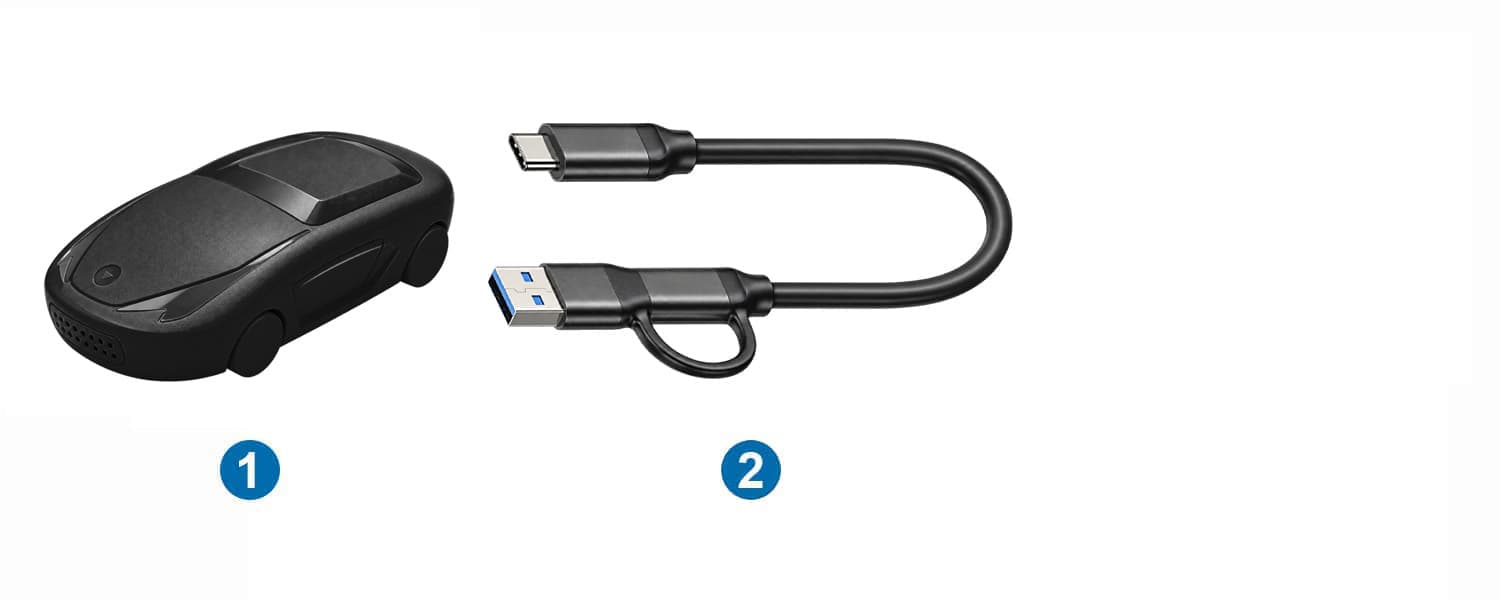
| No. | Item | Quantity | Notes |
|---|---|---|---|
| 1 | CB17 wireless adapter | 1 | Connects to the vehicle's USB data port |
| 2 | USB-C Male to (USB-A Male + USB-C Male) Adapter Cable | 1 | Provides USB-C Male and USB-A Male vehicle-side connectors |
Package contents depend on the set purchased. Check the accessories and their condition on receipt. Contact the seller if any items are missing or damaged in transit.
02.03Connector and USB adapter
CB17 has a USB-C female port. Connect the USB-C Male end of the supplied cable to CB17. At the vehicle end, use the USB-C Male or USB-A Male connector according to the vehicle data port.
Compatibility and preparation
03.01Vehicle requirements
Your vehicle must have factory-installed wired CarPlay or wired Android Auto and a working USB data port for the corresponding function.
View CarPlay-compatible vehicles ↗
View Android Auto-compatible vehicles ↗
Use the vehicle lists as an initial guide. Features may vary by model year, trim, sales region and infotainment software version. Before use, confirm that the corresponding factory-installed wired connection works correctly.
To use CarPlay, first check that wired CarPlay works in your vehicle. To use Android Auto, first check that wired Android Auto works. Bluetooth, USB charging or a display alone does not establish compatibility.
03.02Phone requirements
| Phone type | Requirements |
|---|---|
| iPhone | iPhone 5 or later with iOS 7.1 or later. Updating to the latest iOS available for your model is recommended.Turn on Bluetooth, Wi-Fi and Siri, and allow CarPlay. |
| Android phones | Android 11.0 or later with 5 GHz Wi-Fi support. Turn on Bluetooth and Wi-Fi, and make sure Android Auto is available and up to date. |
Android Auto is built into supported Android phones and usually does not need to be installed separately. Android (Go edition) does not support Android Auto. Availability also depends on your phone model and region.
03.03Before connecting
- Park in a safe location and turn on the vehicle's infotainment system.
- Leave CB17 disconnected for now. Connect your phone directly to the vehicle's USB port using a data-capable cable.
- Check that the corresponding wired CarPlay or Android Auto interface opens on the vehicle display.
- Disconnect the phone cable and prepare to connect CB17.
If the wired connection does not work either, check your phone, cable and infotainment settings first. Restore the vehicle's wired connection before connecting CB17.
03.04Network and permissions
Keep your phone unlocked during initial setup so you can respond to permission requests. Online navigation, music and similar services require an internet connection on your phone. Data and service charges depend on your plan and the app's terms.
If you are unsure about compatibility, contact customer support with your vehicle model and year, infotainment system details, phone model and operating system version.
USB connection and startup screen
04.01Connection steps
- Connect CB17 to the vehicle's USB data port that supports wired CarPlay or Android Auto.
- If the vehicle has a USB-C data port, attach CB17 to the supplied USB adapter first, then connect it to the vehicle.
- Make sure the connection is secure and the device is positioned so that it will not be pulled or interfere with vehicle operation.
- Wait for the connection screen to appear on the vehicle display. If necessary, open the vehicle's smartphone connectivity menu.
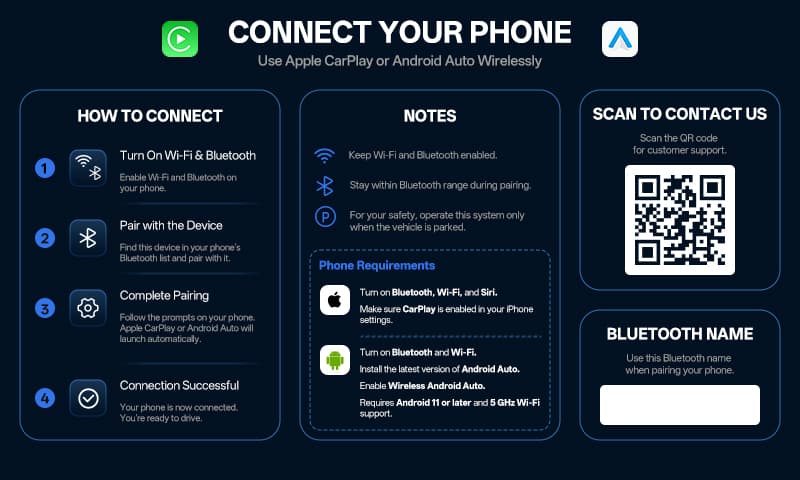
- Check the device name shown on the vehicle display, then follow Chapter 05 or Chapter 06 to connect your phone.
04.02After connecting
Check that the infotainment system has recognized the device, the connection screen appears correctly and the connector is secure. Use the device name shown on the vehicle display.
If the connection screen does not appear, check that the USB port supports data transfer and test the vehicle's wired smartphone connection again. Avoid repeatedly plugging and unplugging the device in quick succession.
04.03Usage notes
Use the supplied USB adapter where possible. Avoid hubs or extension cables whose compatibility has not been confirmed. Keep the infotainment system running until initial pairing is complete.
04.04Startup screen and device name
After CB17 is connected, the startup connection screen on the vehicle display shows the Bluetooth name used for pairing. Select the matching name in your phone's Bluetooth device list.
Apple CarPlay
05.01Before connecting
Use an iPhone 5 or later with iOS 7.1 or later. Turn on Bluetooth, Wi-Fi and Siri, and allow CarPlay. Updating to the latest iOS available for your model is recommended.
If Screen Time or device management restrictions are enabled, check that CarPlay is allowed.
05.02First-time connection
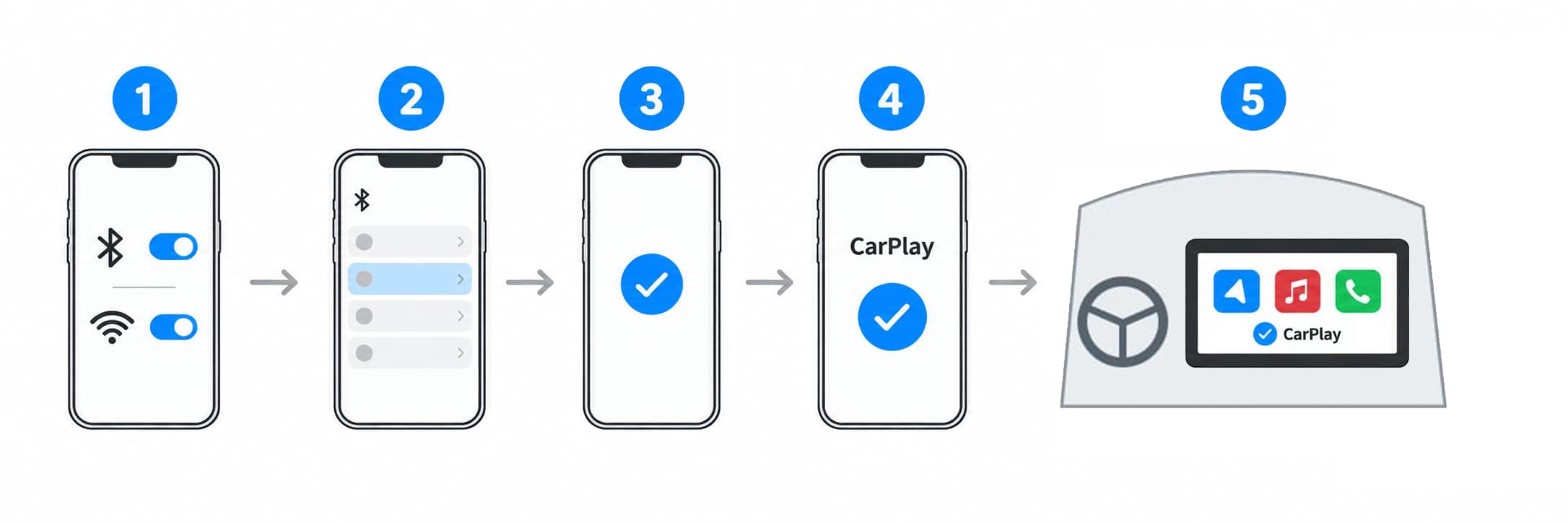
- Connect CB17 as described in Chapter 04 and wait for the connection screen to appear on the vehicle display.
- On your iPhone, go to Settings > Bluetooth. Search for and select the device name shown on the vehicle display.
- Follow the prompts on your phone and vehicle display to complete Bluetooth pairing. If a pairing code appears, check it before confirming.
- Allow CarPlay when prompted. To use it while your phone is locked, allow CarPlay while locked if prompted.
- Once connected, CarPlay opens automatically on the vehicle display.
05.03Connection check
While parked, test navigation, music and calls to check that the display and audio work correctly. Keep Bluetooth and Wi-Fi enabled on your phone during use.
Only CarPlay-compatible apps are available. Touch, rotary controller, steering wheel button and voice controls depend on your vehicle's supported features.
05.04Connection problems
If Bluetooth pairing is complete but CarPlay does not open, check Wi-Fi, Siri, CarPlay permissions and the vehicle's smartphone connectivity menu.
If you still cannot connect, follow Chapter 11 to remove the relevant saved connections and pair again.
Android Auto
06.01Before connecting
Use a compatible phone with Android 11.0 or later and 5 GHz Wi-Fi support. Turn on Bluetooth and Wi-Fi, make sure Android Auto is available, and check for updates in the app store.
Android Auto may appear in system settings without a separate app icon. If a Wireless Android Auto option is available, turn it on. Menu names vary by phone.
06.02First-time connection
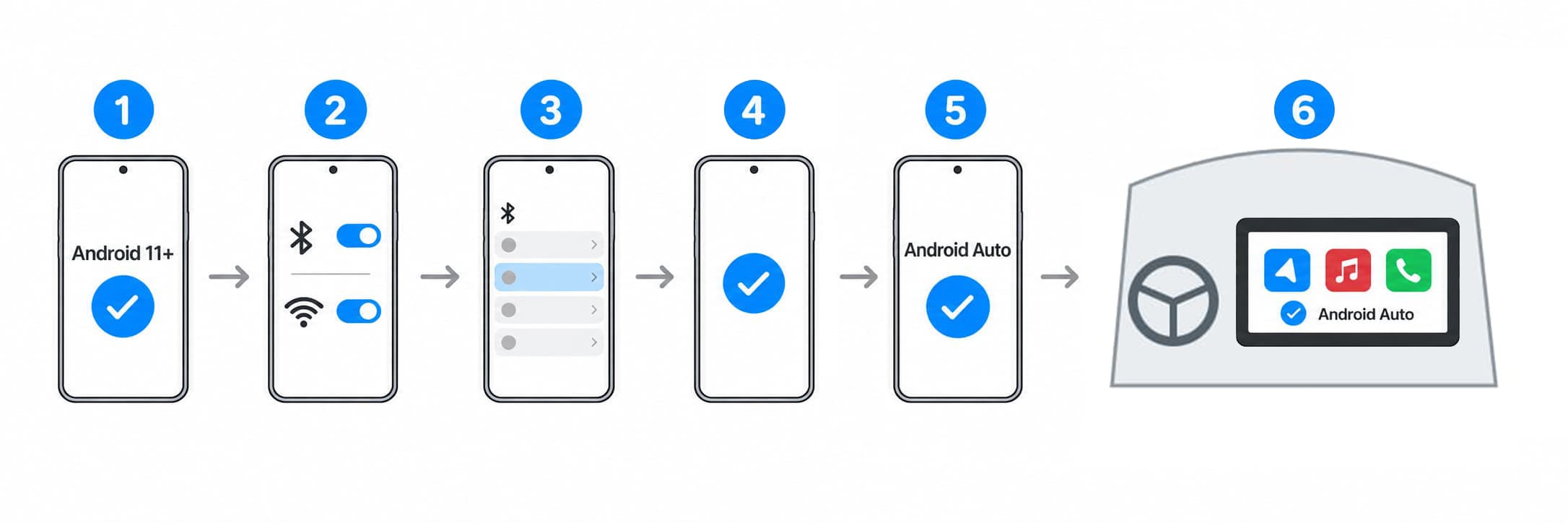
- Connect CB17 as described in Chapter 04 and wait for the connection screen to appear on the vehicle display.
- Open your phone's Bluetooth settings. Search for and select the device name shown on the vehicle display.
- Follow the prompts to complete Bluetooth pairing, finish Android Auto setup and grant the required permissions.
- Wait for Android Auto to open automatically on the vehicle display. If your phone shows any outstanding prompts, follow the on-screen instructions.
- While parked, test navigation, music and calls before driving.
06.03Connection check
Keep Bluetooth and Wi-Fi enabled on your phone during use. Online content requires an internet connection on your phone. Available apps and vehicle controls depend on the features supported.
06.04Connection problems
If Bluetooth pairing is complete but Android Auto does not open, check the Android version, 5 GHz Wi-Fi support, Android Auto settings and required permissions.
Restart your phone and the infotainment system if necessary. If the problem persists, follow Chapter 11 to remove the saved connections and pair again.
Automatic reconnection and switching phones
07.01Automatic reconnection
After the first successful connection, the system reconnects automatically the next time you get in the vehicle. Keep CB17 connected to the correct port, retain the phone's pairing records and leave Bluetooth and Wi-Fi enabled.
Turn on the infotainment system and wait for CarPlay or Android Auto to appear. Respond to any new connection or permission prompts on your phone while parked.
07.02Cannot reconnect automatically
- Make sure the phone you want to connect is in the vehicle with Bluetooth and Wi-Fi enabled.
- Check that the infotainment system has recognized CB17 and that your phone has no unanswered prompts.
- If other previously paired phones are nearby, temporarily turn off their Bluetooth and Wi-Fi, then test the phone you want to connect.
- If necessary, select the device in the Bluetooth list on the phone you want to connect. If the connection is still not restored, follow Chapter 11.
07.03Switching phones
Disconnect the current phone, then follow the first-time connection steps for the phone you want to use. When troubleshooting, test with only one phone to prevent other paired phones from affecting the connection.
07.04After use
Turn off the infotainment system as described in the vehicle manual. Some vehicles continue to power USB ports after the ignition is turned off. Follow your vehicle manual's guidance on connected devices, particularly when parking for an extended period.
Everyday use
08.01Navigation and apps
Once connected, use supported CarPlay or Android Auto navigation, music, calling and other functions on the vehicle display.
If navigation content does not update, check your phone's internet connection, location permissions and map app first. If the CarPlay or Android Auto interface is working normally, there is no need to delete pairing records immediately.
08.02Audio and calls
Check the infotainment system's audio source, mute setting and volume. Media, navigation guidance and call volumes may be separate; adjust each while that type of audio is playing.
If there's no sound, check if your phone outputs audio to other headphones or Bluetooth devices, and select the desired output.
08.03Voice assistant and vehicle controls
Enable your phone's voice assistant and grant the required permissions. Steering wheel buttons, rotary controllers and touch controls depend on your vehicle and the platform's supported features.
Wi-Fi passwords and network connection
09.01Normal connection
Your phone normally establishes the wireless connection automatically without a Wi-Fi password. Follow the Bluetooth pairing steps; you do not need to select the Wi-Fi network manually each time.
09.02If a Wi-Fi password is requested
The Wi-Fi password can vary by device software version. Common passwords are 88888888 and 12345678. Use the password shown by the device or provided by customer support for your version first. Normal connection usually does not require you to enter a password manually.
- Check that you have selected the network for your device.
- Enter the Wi-Fi password for your version. If no password has been provided, try 88888888 first. If it is rejected, try 12345678.
- If your infotainment system has a Settings > Network / Wi-Fi menu, you can also select the corresponding network and enter the password there.
- If neither password works, check that you have selected the network for your device, then contact customer support to confirm the password for your version. If necessary, follow Chapter 11 to restore the connection.
09.03No internet connection message
The device's Wi-Fi link connects your phone to the infotainment system. A No internet connection message does not necessarily indicate a problem with CarPlay or Android Auto. Check that those functions work, then check your phone's mobile data and app internet access separately.
Do not switch to another Wi-Fi network just to remove this message, as doing so may interrupt the current connection.
09.04Diagnostics and software updates
For device diagnostics or software updates, contact customer support and follow the instructions for CB17. Do not use firmware for other models or unverified update procedures.
Troubleshooting and FAQs
The following checks do not require disassembly or modification. Carry them out while parked. Contact customer support if the problem persists.
10.01Compatibility and USB connection
Can I use CB17 if my vehicle does not have wired CarPlay or Android Auto?
No. CB17 only works with vehicles that already have the corresponding factory-installed wired CarPlay or wired Android Auto function.
My phone charges through USB. Does that mean the port is compatible?
No. Connect your phone with a data cable to confirm that the port supports the vehicle's wired CarPlay or Android Auto function.
My vehicle supports only one of the wired systems. How do I check compatibility?
Check compatibility with the wired system you intend to use. For other combinations, contact customer support with your vehicle and phone details.
The connection screen does not appear on the vehicle display
Check: The infotainment system is on, the USB port supports the corresponding wired CarPlay or Android Auto function, and the device and USB adapter are securely connected.
Next step: Test the vehicle's wired function using your phone and a data cable. Once it works correctly, reconnect CB17.
10.02Phone pairing and wireless connection
My phone cannot find the device
Check: The connection screen is visible on the vehicle display, Bluetooth is enabled on your phone, and you are searching for the name shown on the vehicle display.
Next step: Search and pair again. If the device still cannot be found, restart your phone and the infotainment system.
CarPlay does not connect
Check: Bluetooth, Wi-Fi, Siri and CarPlay permissions on your iPhone, and any prompts awaiting confirmation.
Next step: Try the steps in Chapter 05 again. If necessary, follow Chapter 11 to remove the saved connections and pair again.
Android Auto does not connect
Check: Android 11.0 or later, 5 GHz Wi-Fi support, Android Auto settings and the required permissions.
Next step: Try the steps in Chapter 06 again. If necessary, follow Chapter 11 to remove the saved connections and pair again.
What are the Android phone requirements?
Use a compatible phone with Android 11.0 or later and 5 GHz Wi-Fi support, and make sure Android Auto is available.
Why does Wi-Fi need to stay on after Bluetooth connects?
Wireless CarPlay and Android Auto require both Bluetooth and Wi-Fi. A Bluetooth connection alone does not mean that the full CarPlay or Android Auto connection is established.
Do I need to enter a Wi-Fi password every time?
No. The connection is normally automatic. If a password is requested, check the password for your device software version. See Chapter 09 for details.
10.03Automatic reconnection and switching phones
The phone does not reconnect automatically when I return to the vehicle
Check: Your phone's Bluetooth and Wi-Fi settings, saved pairing records and the infotainment system's status. Temporarily disconnect other previously paired phones.
Next step: Select the device in your phone's Bluetooth list. If the connection is still not restored, pair again.
How do I connect a different phone?
Disconnect the current phone, then follow the first-time connection steps for the phone you want to use.
10.04Disconnections, lag and restoring the connection
The connection keeps dropping
Check: The USB connection is secure. Keep the phone near the device with minimal obstructions. Test the effects of hotspots, VPNs and power-saving restrictions one at a time.
Next step: Restart your phone and the infotainment system. If the problem persists, follow Chapter 11 to remove the relevant saved connections and pair again.
Slow response or audio stuttering
Check: Your phone's background workload and internet connection. Note whether the issue occurs only in a particular app or location, or when the phone is hot.
Next step: Close demanding tasks and test again. Record the conditions under which the issue occurs and contact customer support.
Does deleting the phone's pairing records reset CB17 to factory settings?
No. Deleting pairing records lets you set up the phone-to-device connection again. Contact customer support if the device itself needs to be reset or restored.
10.05Sound, internet connection and apps
No sound during music playback or calls
Check: The infotainment system's audio source, mute setting and relevant volume, and the phone's selected audio output.
Next step: Test music and calls separately and note which functions are affected.
Maps load slowly or cannot access the internet
Check: Your phone's mobile data, location permissions and map app.
Next step: Restore your phone's internet connection or app operation first, then check the vehicle display. Contact the app provider if necessary.
Can all apps on my phone appear on the vehicle display?
Only apps supported by CarPlay or Android Auto can appear on the vehicle display.
10.06When to stop using the product
The device, connector or USB adapter is damaged, scorched, emitting an unusual smell or smoke, or becoming excessively hot.
The device malfunctions after exposure to moisture or a strong impact, or causes electrical problems in the vehicle when connected.
Restoring the connection
If connection problems persist, remove the saved connections for this device from your phone, then pair again.
11.01Restoring the connection on iPhone
- Go to Settings > General > CarPlay, select the corresponding vehicle, then choose Forget This Car.
- In Wi-Fi settings, forget the corresponding network. In Bluetooth settings, forget the corresponding device.
- Restart your iPhone and the infotainment system. Follow your vehicle manual to restart the infotainment system.
- Reconnect CB17. Turn on Bluetooth, Wi-Fi and Siri, and allow CarPlay.
- Pair again as described in Chapter 05, then check navigation, music, calls and subsequent reconnection.
11.02Restoring the connection on Android
- In your phone's Wi-Fi settings, remove the saved network for this device.
- In Bluetooth settings, unpair this device.
- Restart your phone and the infotainment system.
- Check that all wireless connection requirements are met, then pair again as described in Chapter 06.
- Check that the vehicle display, audio and subsequent reconnection work correctly.
11.03If the connection is still not restored
Use your phone and a data cable to check that the vehicle's wired function works. Note any prompts or the step where pairing stops, then contact customer support.
CB17 does not have a reset pinhole. Do not insert a pin or other tool into the housing openings. Contact customer support for any further recovery steps.
Care and maintenance
12.01Cleaning
Disconnect the device, then clean the exterior with a soft, dry cloth. Do not spray cleaning fluid into the ports or scrape them with metal tools. Make sure the connectors are dry and free of debris before reconnecting.
12.02Checking connectors and accessories
Regularly check the device and USB adapter for looseness, deformation or damage. Stop using them if you find a problem. Do not force a damaged connector into place.
12.03Storage and reuse
Store in a dry place, away from direct sunlight, heat and heavy pressure. Avoid putting strain on the connectors. Follow the vehicle manual's USB power guidance when parking for an extended period.
Before using the device again, inspect it and its connectors, then test phone connectivity and audio while parked.
12.04After software updates
If connection problems occur after a phone or infotainment update, check Bluetooth, Wi-Fi and permissions again. If necessary, follow Chapter 11 to restore the connection.
If you need to update the CB17 software, please contact customer service first to confirm the compatible version and operating instructions.
12.05Recycling and disposal
Sort and recycle packaging according to local requirements. Dispose of the product through an appropriate electrical and electronic equipment collection service. Do not burn it or disassemble it yourself.
Technical support
Prepare your product details and a description of the problem before contacting customer support.
13.01Self-service

Official website: https://www.aotu-link.com
For personal after-sales assistance, expand and complete the “13.02 Submit a support request” form below. Providing the information at once helps us respond more efficiently.
If the form is unavailable, email support@aotu-link.com with the product model, purchase channel and a description of the issue.
Live support: click the blue chat icon on this page. You can chat directly when an agent is online.